
How to Set up Payment Buttons in Wix (and When to Use One)

Updated: Sep 23
If you need to collect a simple payment through your Wix website, you might not need to set up an entire online store.
A Wix Pay Button gives visitors a quick way to pay for a single item or service directly from your website. When someone clicks the button, they’re taken straight to checkout to complete their payment.
That makes Pay Buttons useful for simple transactions where you don’t need all the features that come with Wix Stores or Wix Bookings.
Here’s how Wix Pay Buttons work, when they make sense, and how to add one to your website.
What Is a Wix Pay Button?
A Wix Pay Button is a button you can add directly to a page on your website to collect payment for a specific item.
Instead of sending visitors through a full online store, clicking the button takes them directly to checkout.
You can set:
The item name
The price
The currency
The text that appears on the button
An optional terms and conditions checkbox
You can also customize the button’s layout and design so it fits with the rest of your website.
To actually accept payments, your Wix site needs to be on a plan that supports online payments and you’ll need to connect a payment provider.
When Should You Use a Wix Pay Button?
A Pay Button is best when you’re collecting a relatively simple, fixed payment.
For example, you might use one to:
Sell a single product
Collect payment for a simple service
Charge a set registration fee
Sell access to a one-time offer
Accept payment for something that doesn’t require a full product catalog
The biggest advantage is simplicity.
If you only have one thing to sell, setting up a full ecommerce system can be more complicated than you actually need. A Pay Button lets you create a clear call-to-action such as Buy Now, Pay Now, or Purchase, and send the customer directly to checkout.
When Should You Use Wix Stores Instead?
A Pay Button is simple by design, which also means there are situations where another Wix tool makes more sense.
If you’re selling multiple products, particularly physical or digital products, I’d usually recommend using Wix Stores instead.
Wix Stores gives you features designed specifically for ecommerce, including product pages, collections, inventory management, order management, shipping options, and a shopping cart.
Think of it this way:
If you have one straightforward item, a Pay Button may be all you need.
If you’re building an actual online shop where customers need to browse products, choose options, add multiple items to a cart, or manage shipping, Wix Stores is the better fit.
What About Services and Appointments?
If what you’re really selling is an appointment, class, consultation, or other scheduled service, Wix Bookings will usually make more sense than a Pay Button.
Wix Bookings is built to handle the scheduling side of the transaction, including things like service availability, calendars, appointment times, and customer bookings.
A Pay Button can collect money, but it doesn’t replace a scheduling system.
This is one of those situations where choosing the right Wix tool from the beginning can save you a lot of work later.
How to Add a Pay Button in Wix
Adding a Pay Button is pretty straightforward.
In the Wix Editor:
Open the page where you want to add the button.
Click Add Elements.
Choose Button.
Open the Pay Buttons section.
Select a button and add it to your page.
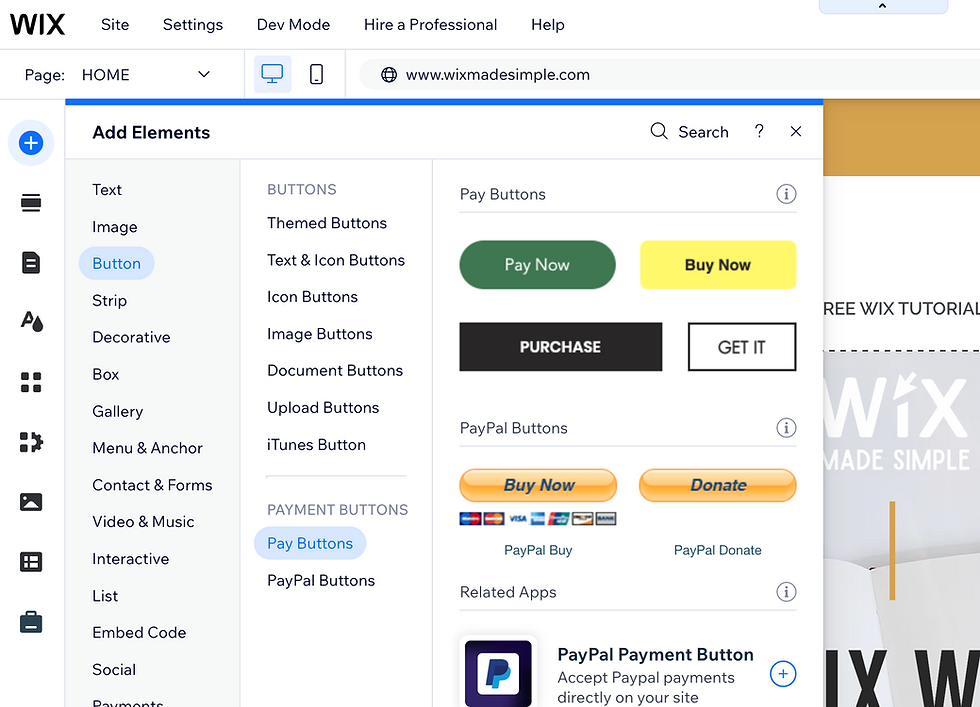
Adding the button automatically installs the Pay Button app on your site.
Once the button is on the page, click it and open Settings.
From there, you can enter the item name, price, button text, and any terms and conditions you want customers to agree to before checkout.
Wix currently supports Pay Buttons in the Wix Editor, Studio Editor, and Harmony Editor.
How to Connect a Payment Provider
Before customers can actually pay you, you need to connect a payment method to your Wix site.
You can do that from Accept Payments in your Wix dashboard.
Depending on your location, Wix may offer different payment providers. Wix Payments is Wix’s own payment solution, but additional providers may also be available depending on your country.
If you’ve already connected a payment provider for another Wix feature, such as Wix Stores or Wix Bookings, you generally won’t need to set it up again.
The payment methods your customers see at checkout depend on the provider you connect and what’s available in your region.
For example, depending on your setup, customers may be able to pay with credit or debit cards, PayPal, Apple Pay, Google Pay, or other supported methods.
Can You Customize a Wix Pay Button?
Yes.
You can change the button text so it says something that fits the action you want visitors to take, such as:
Buy Now
Pay Now
Purchase
Register
Get Started
You can also customize the button’s appearance, including its fill, border, corners, shadow, and text styling.
I recommend making the call-to-action as specific as possible.
For example, Buy the Pattern is more helpful than simply Click Here because visitors immediately understand what the button will do.
Can You Track Wix Pay Button Payments?
Yes.
Payments made through a Wix Pay Button can be viewed in your Wix dashboard under All Payments.
That means you can keep track of transactions alongside other payments processed through your Wix website.
This is another reason I’d generally use a Wix Pay Button rather than trying to create a workaround with an outside button or payment link when the purchase is happening directly on your website.
What About Wix Pay Links?
Wix also has Pay Links, which are slightly different.
A Pay Button lives directly on your website.
A Pay Link gives you a URL you can send to someone through email, text, social media, a QR code, or another channel. Wix Pay Links can be useful when you want to request payment without requiring the customer to first visit a specific page on your website.
So the simplest distinction is:
Pay Button = payment from your website
Pay Link = payment from a shareable link
Both can be useful, depending on how you’re asking the customer to pay.
Are Wix Pay Buttons Right for You?
If you need to collect a simple one-time payment from your Wix website, a Pay Button can be a great option.
You don’t necessarily need to build an entire ecommerce store just to sell one item.
But if your business needs more advanced functionality—like a full product catalog, inventory, shipping, subscriptions, or appointment scheduling—look at Wix Stores, Wix Bookings, or another Wix business solution instead.
The important thing is choosing the tool that actually matches what you’re selling.
Watch the Wix Pay Button Tutorial
Want to see exactly where to find the Pay Button and how to set it up inside Wix?
In the video below, I walk through the process step by step.
Looking for other helpful tips for your Wix website? Check out my other guides here:
Need Help Setting Up Payments on Your Wix Website?
If you’re not sure whether you should be using a Pay Button, Wix Stores, Wix Bookings, or another payment setup, you can book a 1-on-1 Wix training and troubleshooting session with me.
We can work together over screen share to figure out the simplest setup for your business and get it working correctly.

Comments