
How to Send an Automated Email in Wix

Updated: Sep 23
If someone fills out a form, signs up for your email list, books a service, or makes a purchase on your Wix website, you probably don’t want to manually follow up every single time.
That’s where Wix Automations come in.
Wix Automations let you create simple workflows that automatically take action when something happens on your website. One of the most common examples is sending an automated email after someone submits a form.
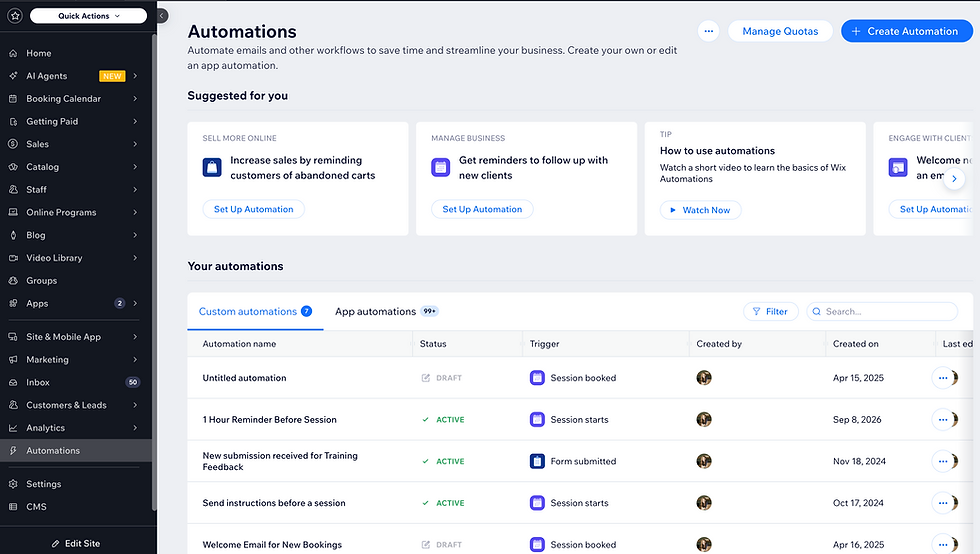
Here’s how Wix Automations work, how to create an automated email, and a few practical ways you can use them on your website.
What Are Wix Automations?
Wix Automations are workflows that run automatically when a specific event happens on your site.
Each automation starts with a trigger.
For example:
Someone submits a form
Someone makes a purchase
Someone books a service
Someone joins your email list
Someone takes another action on your website
Once that trigger happens, Wix performs an action.
That action might be:
Sending an email
Sending a notification
Creating a task
Updating a contact
Adding someone to a workflow
Performing another automated step
You can also add delays and conditions to make automations more specific.
What Happened to Wix Ascend?
If you’ve been using Wix for a while, you may remember automations being connected to Wix Ascend.
Wix no longer uses Ascend as the main product name.
Today, you’ll manage these workflows directly through Wix Automations in your site dashboard.
So if you come across an older tutorial or help article that refers to Ascend, it may still be describing the same general feature—just under older branding.
How to Send an Automated Email in Wix
One of the easiest ways to use Wix Automations is to send an email after someone takes an action on your website.
For example, you might want to send a welcome email whenever someone signs up for your mailing list.
To create an automation:
Open your Wix dashboard.
Go to Automations.
Choose to create a new automation.
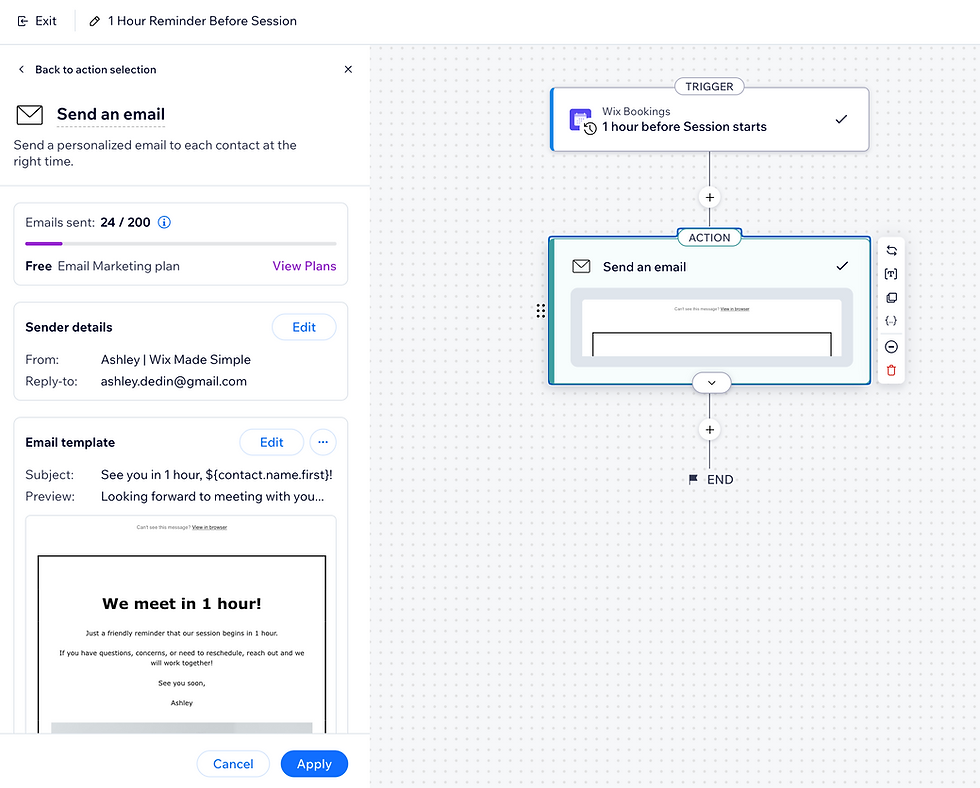
Select the event that should trigger the automation.
Add an action.
Choose Send an email.
Customize the email content.
Review the automation and turn it on.
The exact options you see will depend on the apps and features installed on your site.
For example, a site using Wix Forms may have different trigger options than a site using Wix Bookings or Wix Stores.
Choose the Right Trigger
The trigger is the event that starts your automation.
This is one of the most important parts of setting up the workflow because it determines who receives the email and when.
For example, you could create an automation that starts when:
A visitor submits your contact form
Someone subscribes to your newsletter
A customer completes a purchase
A client books an appointment
Someone completes a specific form
Be as specific as possible.
If your website has several forms, make sure you choose the correct one instead of accidentally sending the same email every time someone submits any form on your site.
Customize Your Automated Email
Once you’ve chosen your trigger, you can create the email Wix will send automatically.
Keep the message closely connected to whatever the visitor just did.
For example, after someone subscribes to your email list, you might send:
Thanks for joining! You’re officially on the list. Keep an eye on your inbox for updates, tutorials, and new resources.
For a contact form, your automated email might simply confirm that the message was received.
For a purchase or booking, you may want to provide next steps or helpful information.
The goal is to make the email feel useful—not just automated.
Use Delays and Conditions When You Need Them
Not every automated email needs to be sent immediately.
Wix Automations can also include delays and conditions.
For example, you might:
Send an immediate confirmation email
Wait two days
Send a follow-up message
Only continue the workflow if the contact meets a certain condition
This gives you more flexibility than a simple one-step autoresponder.
You don’t need complicated workflows for every website, though.
If all you need is a quick thank-you email after a form submission, keep it simple.
Other Ways to Use Wix Automations
Automated emails are just one use for Wix Automations.
Depending on how you use your website, you might also create automations for:
Welcome emails for new subscribers
Contact form confirmations
Appointment follow-ups
Purchase thank-you emails
Abandoned cart reminders
Customer follow-ups
Internal notifications
Lead nurturing
Blog or content-related workflows
The best automations are usually the ones that save you from repeating a task you would otherwise have to do manually.
Don’t Over-Automate Everything
Just because Wix can automate something doesn’t mean it should.
A simple confirmation email is helpful.
A long chain of automated emails for someone who only asked a quick question might feel overwhelming.
Think about the actual experience of the person receiving the message.
Ask yourself:
Does this email help them?
Are they expecting it?
Does it give them useful information?
Am I sending too much?
Automation should make your website feel more responsive—not less personal.
Watch the Wix Automations Tutorial
Want to see how to set this up inside Wix?
In the video below, I walk through creating a simple Wix automation and sending an automated email.
Note: Wix has updated the Automations interface since this video was recorded, so some buttons and menu labels may look different. The basic setup process is still the same.
Need Help Setting Up Wix Automations?
If you know what you want your Wix website to do but you’re not sure how to set up the workflow, you can book a 1-on-1 Wix training and troubleshooting session with me.
We can work together over screen share to set up forms, automated emails, Wix Automations, or another part of your website that isn’t working the way you want it to.
Looking for other easy to follow guides for your Wix website? Check them out here:

Exploring fresh perspectives on daily routines is rewarding when looking through practical daily lifestyle guidance shared by other members.